

Thunderbolt vs USB-C: Complete Guide to Ports, Protocols & Choosing the Right Cable
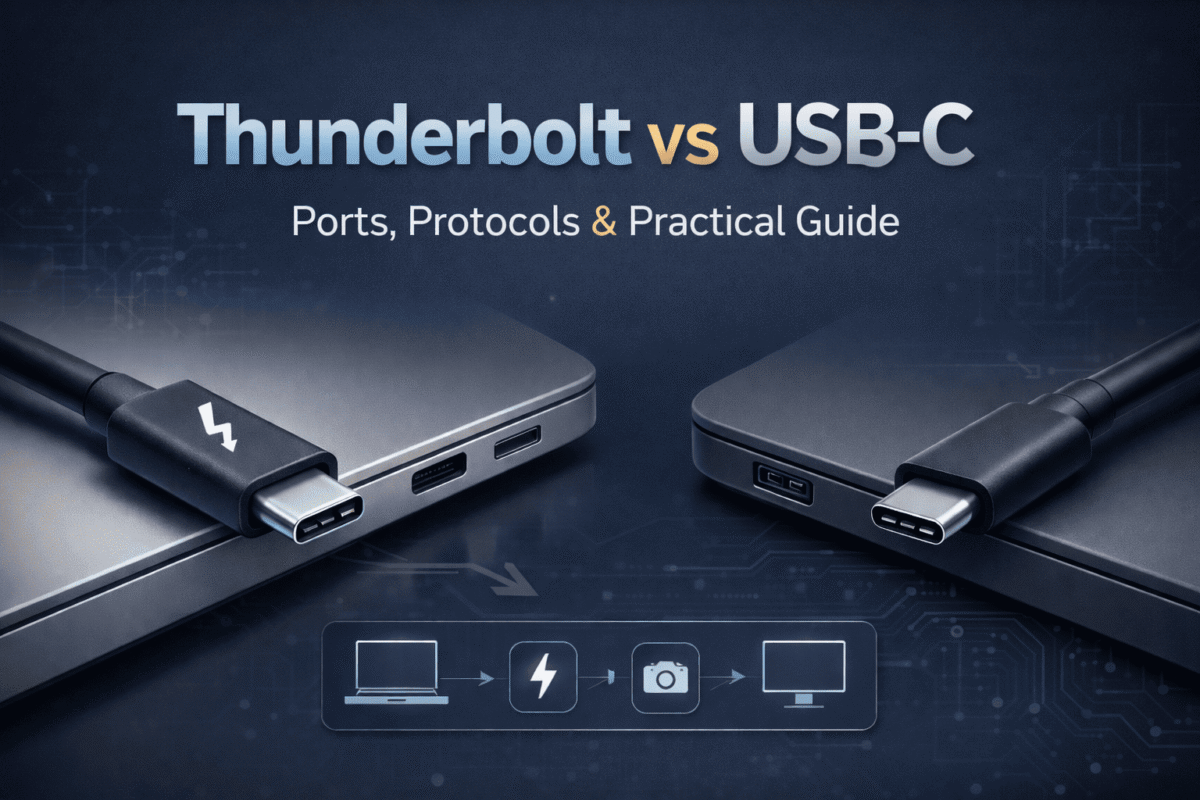
Thunderbolt vs USB-C: Ports, Protocols & Practical Guide
Discover the crucial differences between these identical-looking ports. Learn how to identify them, choose the right cables, understand compatibility rules, and optimize your setup for maximum performance.
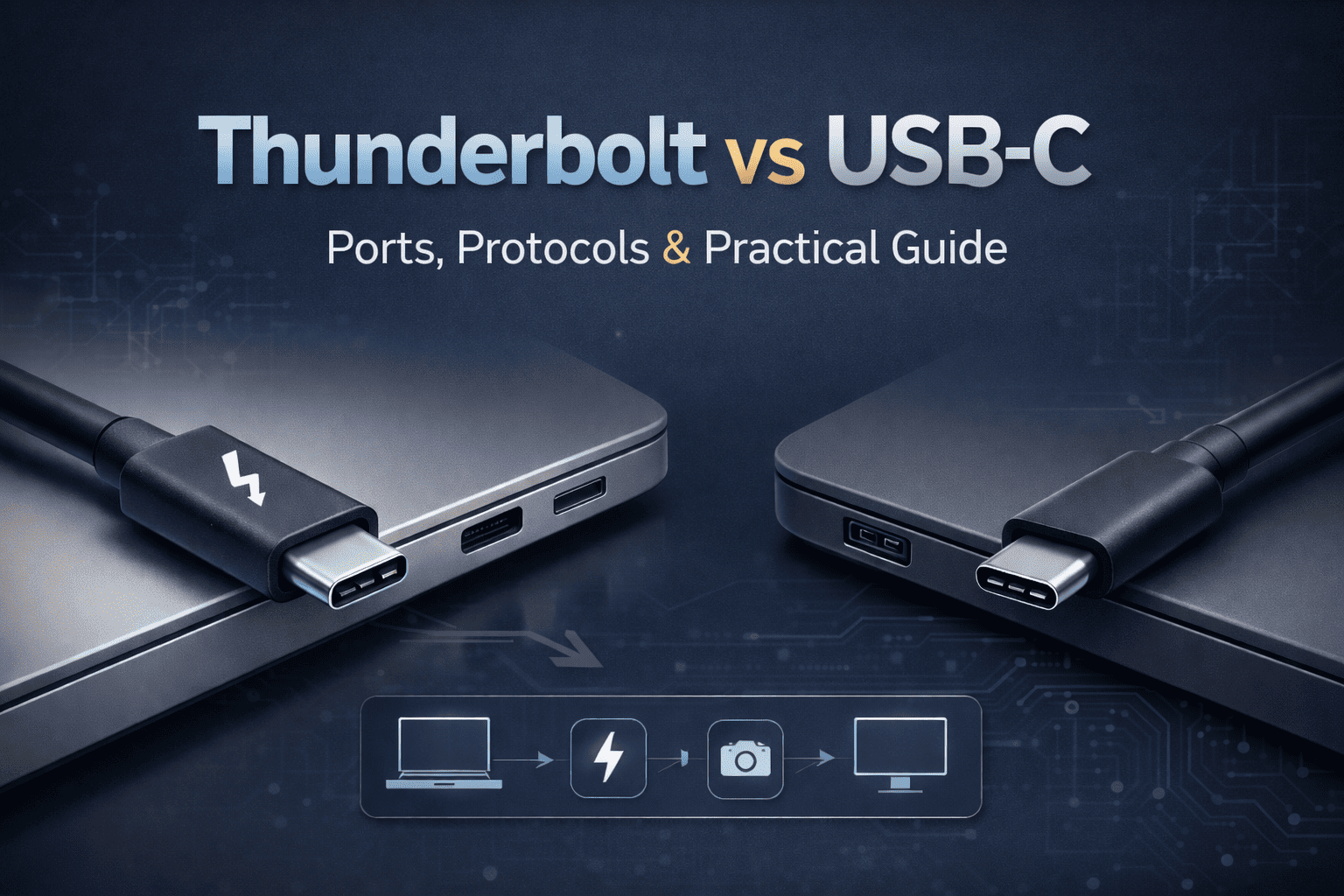
Modern laptops often feature both USB-C and Thunderbolt ports, distinguished only by small symbols.
1. The Core Distinction: Physical Form vs. Performance Protocol
At first glance, USB-C and Thunderbolt ports appear identical—both use the same reversible, oval-shaped connector. This visual similarity is the root of most confusion. The critical difference lies not in what you see, but in what the port is designed to do.

The universal USB-C connector has standardized charging and data transfer across devices.
USB-C: The Universal Connector
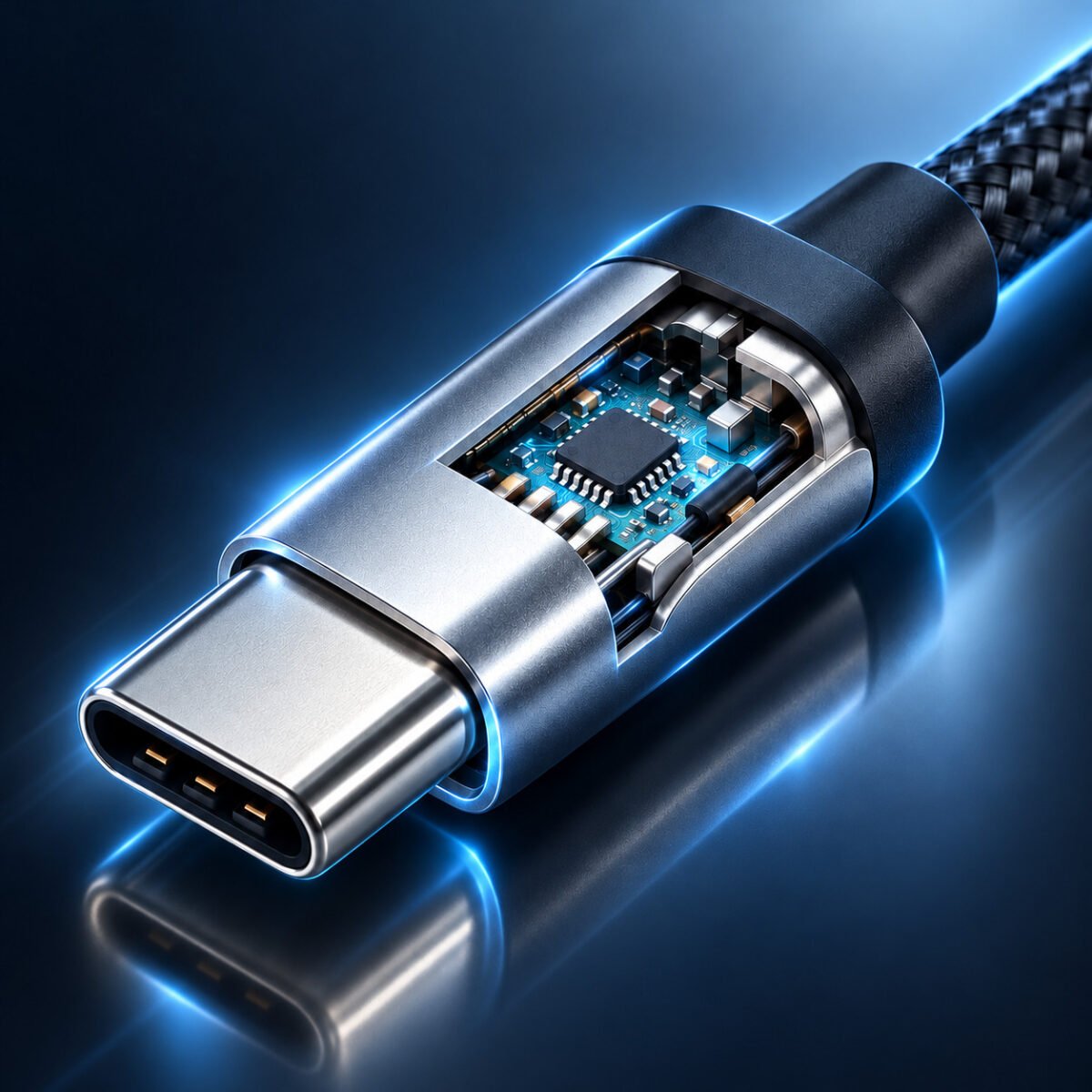
USB Type-C is strictly a physical connector specification. Developed by the USB Implementers Forum (USB-IF), it defines the 24-pin, reversible port that has become the industry standard for modern devices. Its goal is simple: to replace all previous USB types (A, B, Micro, Mini) and other proprietary ports with one universal design.
Thunderbolt: The High-Performance Interface
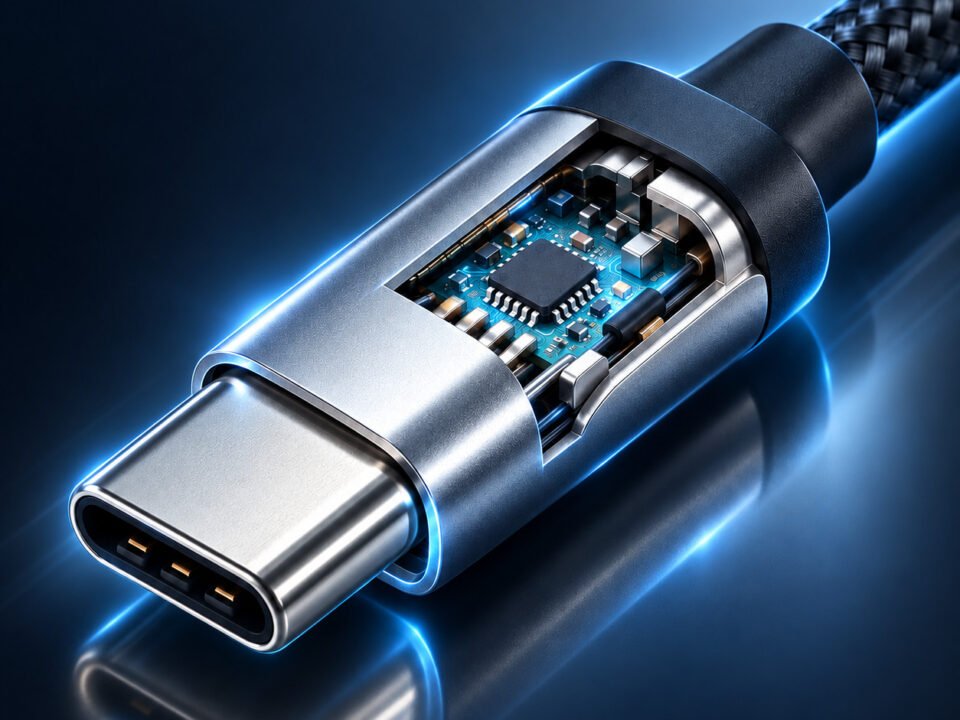
Thunderbolt, developed by Intel in collaboration with Apple, is a hardware interface protocol. It's a sophisticated set of capabilities that can be implemented over the USB-C physical port. Think of it as a specialized communication language that allows for much faster and more complex data transfers than standard USB protocols.
The Golden Rule of Compatibility
This is the single most important concept to understand: Every Thunderbolt port can accept and use any standard USB-C device or cable—it will simply operate at the device's maximum USB speed. However, a standard USB-C port cannot access Thunderbolt features, even if you connect a Thunderbolt device or cable. The host device must have the specialized Intel Thunderbolt controller chip.
2. Thunderbolt: The All-in-One Performance Pipeline
When a device features a true Thunderbolt port (identified by the ⚡ symbol), it offers a combination of capabilities that standard USB-C ports typically cannot match. Thunderbolt 3 and 4, which both use the USB-C connector, represent the current pinnacle of consumer port technology.
Data Transfer Speed Comparison
Thunderbolt offers up to 80x faster data transfer than basic USB 2.0 connections.
| Feature | Thunderbolt 3/4 Specifications | Practical Applications & Benefits |
|---|---|---|
| Data Transfer |
• 40 Gbps bidirectional bandwidth
• PCI Express (PCIe) 3.0 x4 connection
• 32 Gbps PCIe for storage (TB4)
|
Transfer a 4K movie file (~20GB) in under 10 seconds. Edit video directly from an external NVMe SSD with near-internal drive performance. Essential for video professionals, photographers with large RAW files, and anyone working with massive datasets. |
| Video Output |
• Native DisplayPort 1.4 protocol
• Dual 4K displays @ 60Hz
• Single 8K display @ 30Hz
|
Connect your laptop to two high-resolution monitors for enhanced productivity in financial trading, software development, or creative workflows. Perfect for docking stations that transform a portable laptop into a desktop workstation. |

Thunderbolt enables powerful workstation setups with multiple 4K displays from a single laptop connection.
Critical: How to Identify a True Thunderbolt Port
Since the ports look identical, you must verify Thunderbolt support:
- Look for the lightning bolt (⚡) symbol etched or printed next to the port (though some manufacturers omit it to maintain clean aesthetics).
- Check the device's official specifications on the manufacturer's website or product packaging—it will explicitly list "Thunderbolt 3" or "Thunderbolt 4."
- System inspection: On macOS, go to Apple Menu > About This Mac > System Report > Hardware > Thunderbolt. On Windows, open Device Manager and look for "Thunderbolt Controller."
- Be aware of mixed port configurations: Many laptops have both Thunderbolt and standard USB-C ports. For example, a laptop might have two USB-C ports on the left, but only one supports Thunderbolt.
3. The USB-C Ecosystem: Universal but Varied
The USB-C port has succeeded in its mission to become nearly universal, appearing on smartphones, laptops, tablets, monitors, and even some gaming consoles. However, its capabilities vary dramatically between devices, which is a major source of consumer frustration.

USB-C has become the standard charging and data port for most modern smartphones and tablets.
USB Protocol Speed Tiers
A USB-C port's maximum data speed depends on which USB protocol it implements:
| Protocol Name | Maximum Speed | Common Use Cases & Notes |
|---|---|---|
| USB 3.2 Gen 1 (formerly USB 3.0) | 5 Gbps | Basic external hard drives, flash drives, keyboards, and mice. Found on budget devices and many smartphones. |
| USB 3.2 Gen 2 (formerly USB 3.1) | 10 Gbps | Faster external SSDs, higher-resolution webcams, and docking stations. Becoming common on mid-range laptops. |
| USB4 | 20 or 40 Gbps | Based on Thunderbolt 3 technology. Can support similar features but implementation varies by manufacturer. May or may not support external GPUs. |
Cable Types: The Critical Link
Not all USB-C cables are created equal. Using the wrong cable can severely limit your connection's performance. Based on Anker's expertise as a leading cable manufacturer, here's what you need to know:

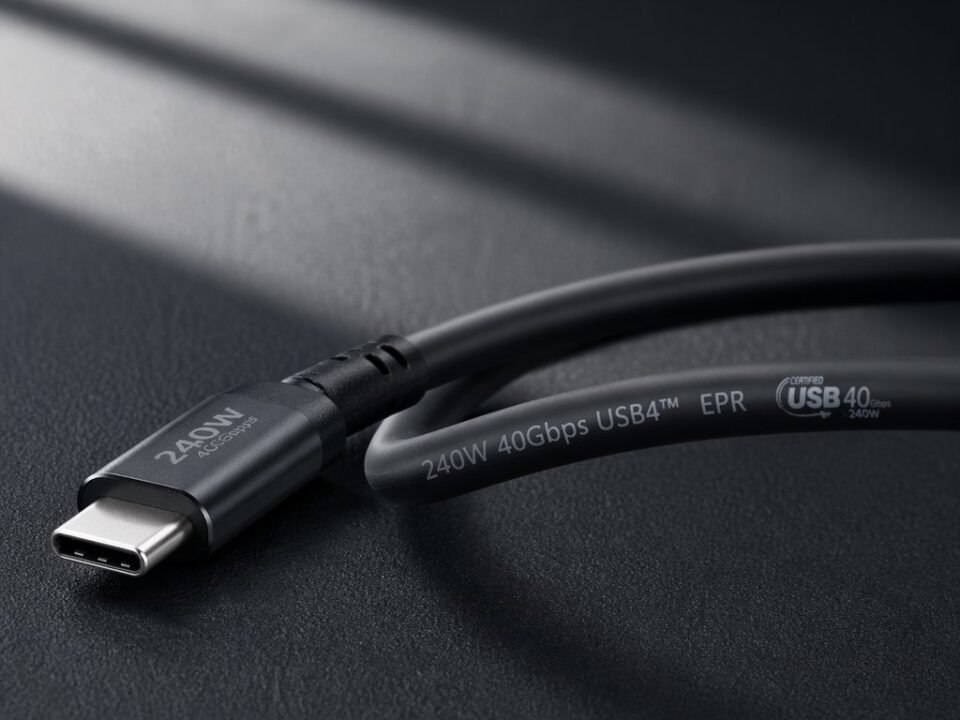
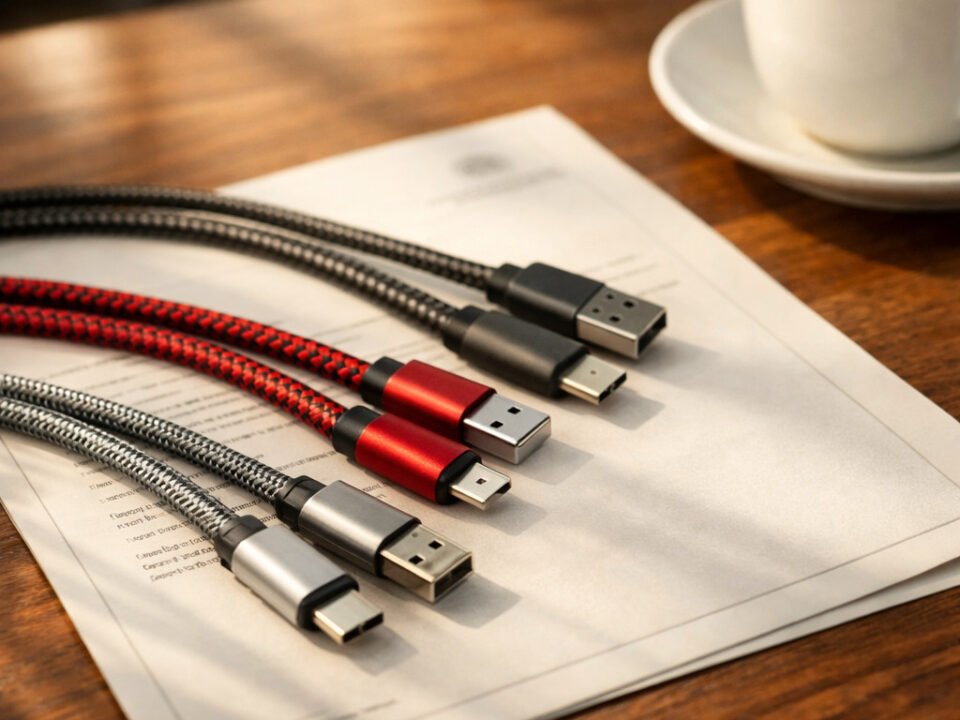
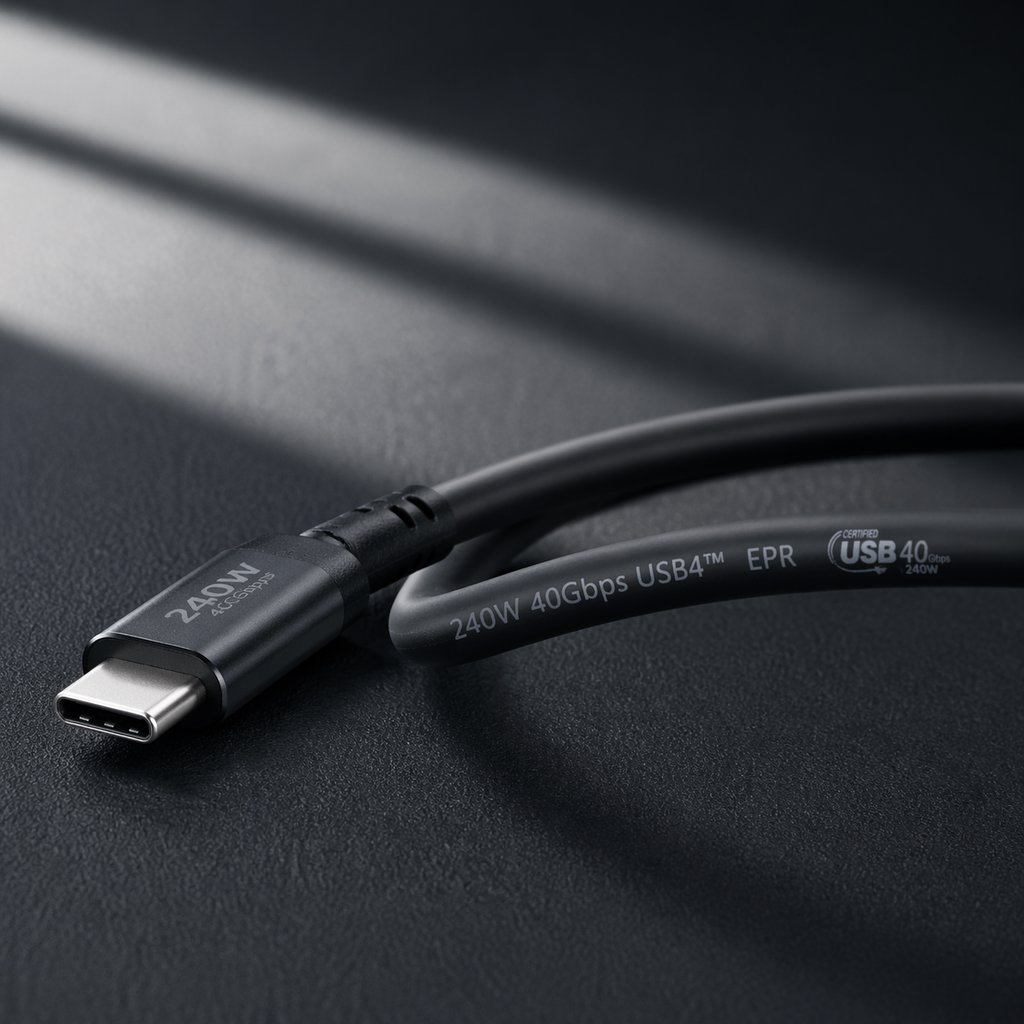
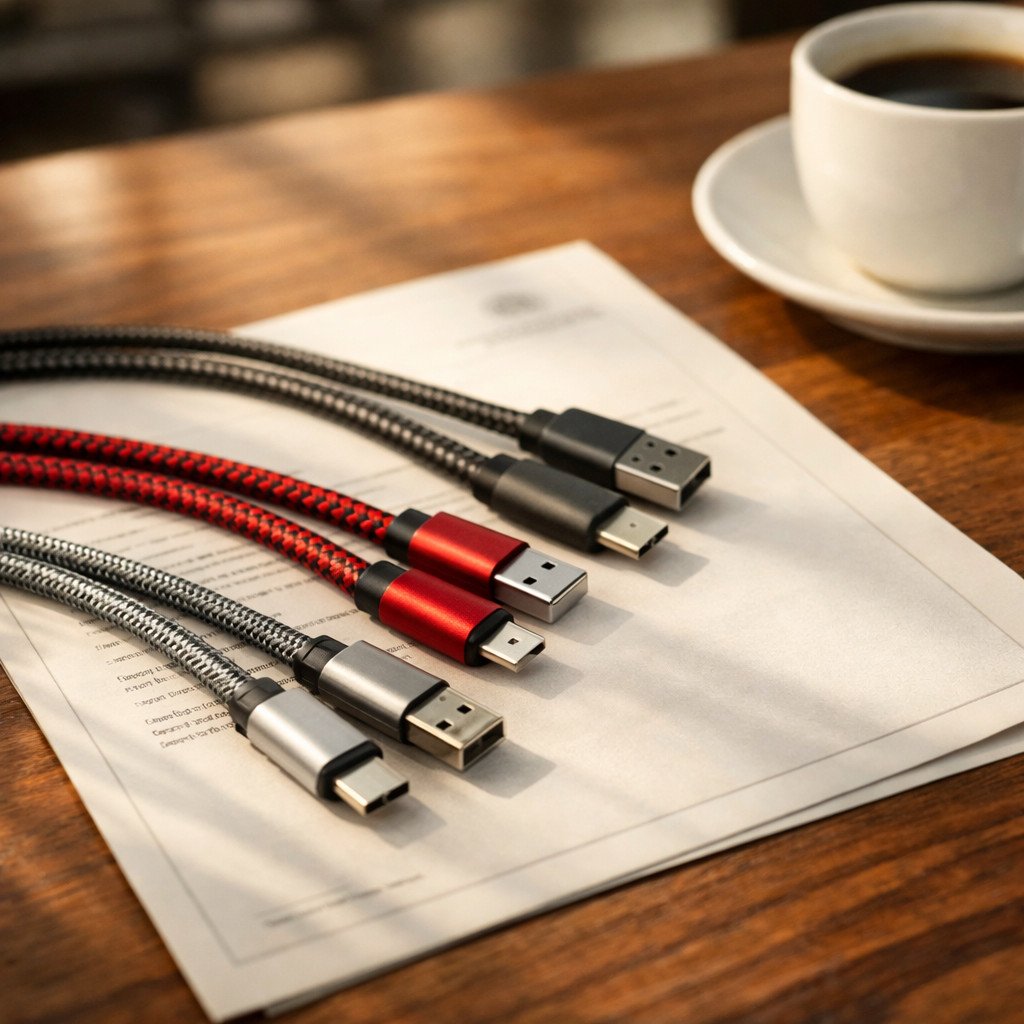
Different USB-C cables support different capabilities - choosing the right one is crucial for optimal performance.
Standard USB-C Cable
Warning: These cheap cables will bottleneck a Thunderbolt or high-speed USB4 connection to their much lower capabilities. They're fine for charging phones or connecting basic peripherals but unsuitable for data-intensive tasks.
Certified Thunderbolt Cable
Best for: Connecting Thunderbolt docks, external GPUs, high-speed NVMe SSD enclosures, and multi-monitor setups. Look for the ⚡ symbol on the cable connector. More expensive but necessary for full Thunderbolt performance.
Full-Featured USB-C Cable
Value choice: For most users who don't need Thunderbolt-specific features like external GPUs. Offers excellent performance for data transfer, charging, and single 4K display output at a lower cost than Thunderbolt cables.
Cable Selection Strategy from Anker's Guide
As highlighted in Anker's technical blog, follow this practical approach:
- For Thunderbolt devices: Always use certified Thunderbolt cables (like Anker's 515 series) to ensure 40 Gbps speeds and dual 4K display support.
- For high-speed USB-C devices: Choose USB4 or USB 3.2 Gen 2 certified cables that explicitly list their supported speeds and power delivery.
- The speed test method: If unsure about a port's capabilities, connect a known high-speed device and transfer a large file. Sustained speeds above 10 Gbps indicate Thunderbolt or USB4.
- Future-proofing: If you're investing in new cables today, consider Thunderbolt 4 cables—they're backward compatible with all USB-C devices and will handle any future upgrades.
4. Making the Right Choice: Thunderbolt vs. USB-C
Your decision between Thunderbolt and standard USB-C should be based on your actual needs, workflow, and budget. Here's a detailed breakdown to guide your choice, incorporating the cost considerations emphasized in Anker's analysis.

Professional workflows often benefit from Thunderbolt's high-speed capabilities and multi-display support.
When You Need Thunderbolt
Invest in Thunderbolt if your work involves:
- Professional video/photo editing: Working with 4K/8K RAW footage or high-resolution photo sets where fast storage access is critical.
- Multi-monitor productivity: Driving two or more 4K displays from a single laptop port for trading, programming, or design work.
- External GPU usage: Adding desktop graphics power to a laptop for gaming, 3D rendering, or machine learning.
- High-speed data workflows: Regularly transferring project files of 50GB or more between drives or systems.
- Studio/enterprise setups: Connecting professional audio interfaces, video capture cards, or 10GbE network adapters.
Cost consideration: Thunderbolt devices and cables cost more due to Intel certification and specialized controller chips. A Thunderbolt dock typically costs $200-$300 versus $80-$150 for a good USB-C dock.
When USB-C is Perfectly Sufficient
Standard USB-C (especially USB4 or USB 3.2 Gen 2) meets the needs of most users:
- General productivity: Office applications, web browsing, email, and video conferencing.
- Everyday peripherals: Connecting keyboards, mice, printers, and external hard drives.
- Single display setups: Connecting one 4K monitor to extend or mirror your laptop display.
- Device charging: Powering smartphones, tablets, and most laptops (up to 100W).
- Media consumption: Streaming video, listening to music, and casual gaming.
Value advantage: USB-C devices are more affordable and widely compatible. You can find quality USB-C hubs for under $100 and cables for $20-$40 that handle data, charging, and video.

For most office and productivity tasks, standard USB-C connections provide all the necessary performance.
Final Recommendations & Summary
To navigate the Thunderbolt vs. USB-C landscape effectively:
- Always verify port capabilities before purchasing accessories—don't assume based on the connector alone.
- Match your cable to your slowest device in the connection chain. A Thunderbolt cable won't make a USB-C port faster.
- For mixed ecosystems (some Thunderbolt and some USB-C devices), Thunderbolt ports offer the best compatibility since they work with everything.
- Consider future needs when buying cables—a quality Thunderbolt 4 cable, while more expensive, will handle any current or near-future device.
- When performance matters (creative work, data-intensive tasks), the Thunderbolt premium is justified. For general use, high-quality USB-C delivers excellent value.
The essential takeaway: USB-C provides the universal physical connection that has simplified our digital lives. Thunderbolt builds upon that foundation to deliver specialized, high-performance capabilities for professionals and power users. By understanding their relationship—that Thunderbolt is a premium protocol that operates over the USB-C connector—you can make informed choices that balance performance, compatibility, and cost for your specific needs.