

USB Connector Types: A Guide to Differences and Uses
USB Connector Types: A Guide to Differences and Uses
Every USB cable ends in a plug, and every plug has a shape that tells you what the cable can do — if you know how to read it. The same four wires inside can sit behind a rectangular Type-A, a squarish Type-B, a 24-pin Type-C, or one of the two miniature formats that older hardware still depends on. This guide walks through each USB connector type in turn: where it came from, what it carries, what it is used for today, and where the labelling on a product page usually goes wrong.
1. What a USB port or connector is
USB stands for Universal Serial Bus, an industry standard for short-distance digital data communication. It was developed in 1994 by Compaq, Digital, IBM, Intel, Microsoft, NEC and Nortel, and it defines both the physical connection and the protocols for data and power between devices.
Only wired connections use a USB connector; wireless standards sit outside this family. A wired connector also comes in two sexes — male plugs at the cable end, female receptacles on the device or host.
Whatever the shape, every USB connector shares four things:
- Contacts — four in the full-size shapes, five in the miniature formats, arranged to carry power and data without shorting across each other. As the standard moved to USB 3.x and USB 4, the contact count grew: SuperSpeed pairs, sideband channels and configuration pins all needed somewhere to live.
- Polarization — every shape except Type-C has a distinct front and back. Forcing a plug the wrong way damages the receptacle more often than the plug.
- Schermatura — a metal shell isolated from the circuit, keeping ambient noise out of the signal path.
- Strain relief — the moulded collar at the cable entry, so that pulling on the cable does not load the solder joints inside the plug.
The USB family has passed through four generations of specification — USB 1.x, 2.0, 3.x and USB 4. The connector shape and the protocol version are separate questions: a Type-A receptacle can be USB 2.0 or USB 3.2, and the shape alone will not tell you which.
2. The different USB connector types
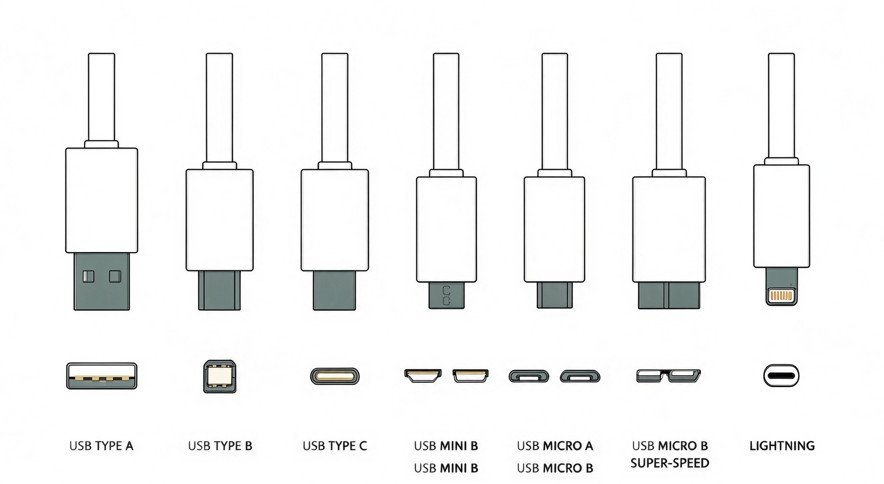
Each connector type has its own plug, its own pin count and its own place in the market.
2.1 USB Type-A
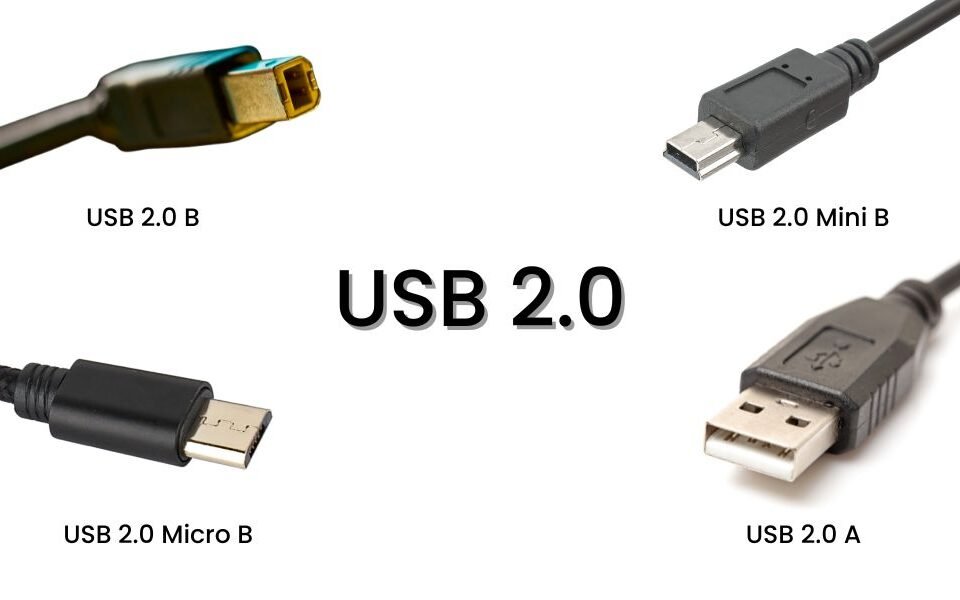
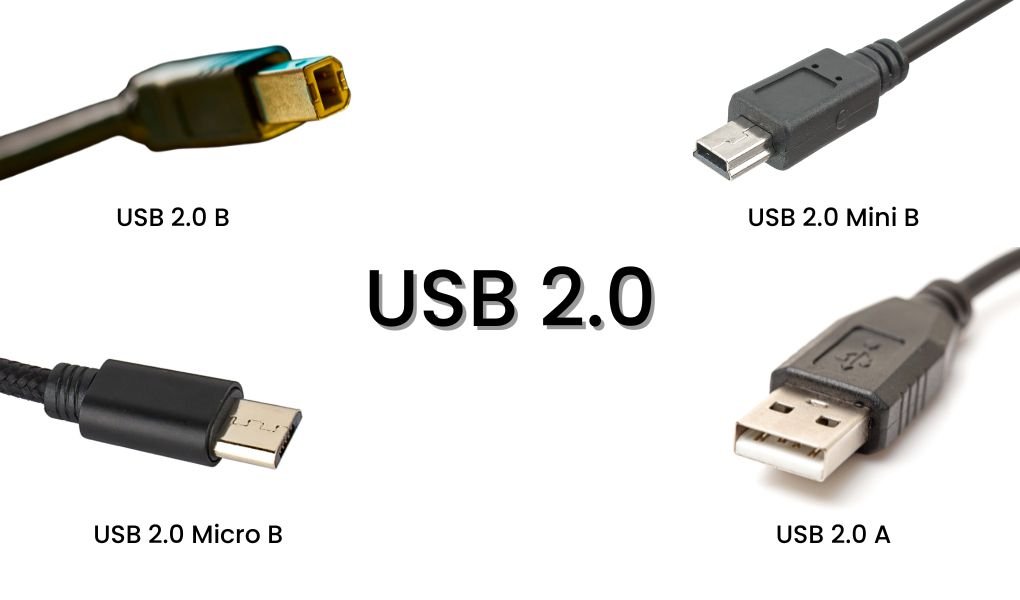
The rectangular Type-A plug, roughly 12 mm wide with a flat contact block, is the most recognisable interface in computing. The flat contacts tolerate repeated insertion well, which is part of why the shape survived four speed generations.

Colour coding is a practical clue rather than a standard: black or white shells usually mean USB 2.0, blue is the common marker for USB 3.0 and above, and red sometimes indicates a charging-only or always-on port. The colour is a manufacturer convention, so treat it as a hint and check the spec.
Type-A remains the home of flash drives, wired mice and keyboards, and the USB-A to USB-C cables sold by the million.
2.2 USB Type-B
Type-B is squarer than Type-A, with two bevelled corners at the top, and it is built for devices that stay put: printers, scanners, external drive enclosures and audio interfaces. It is larger and cheaper to tool than the miniature formats, and mechanically robust, which is why it outlived the peripherals it was designed for.

USB 3.0 introduced a taller SuperSpeed B variant with an extra stack of contacts, recognisable by the second block sitting on top of the standard square. It is still the standard for printers and scanners that need 5 Gbps.
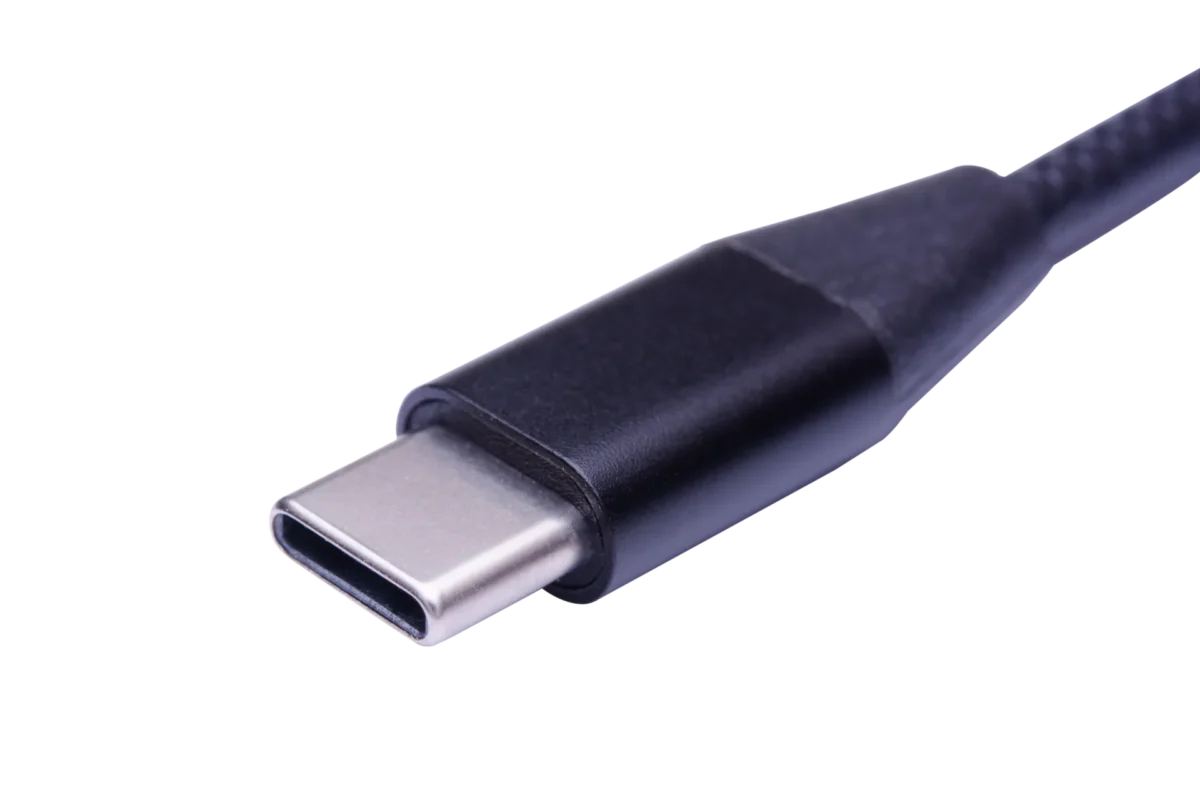
2.3 USB Type-C
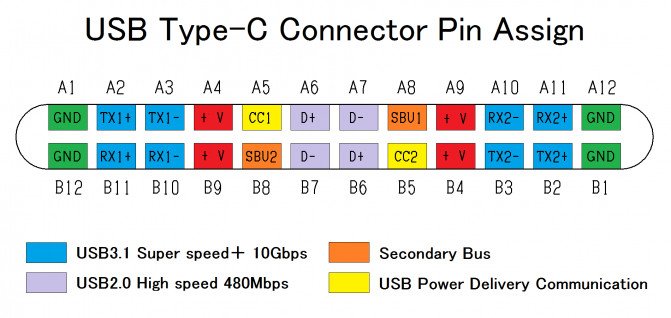
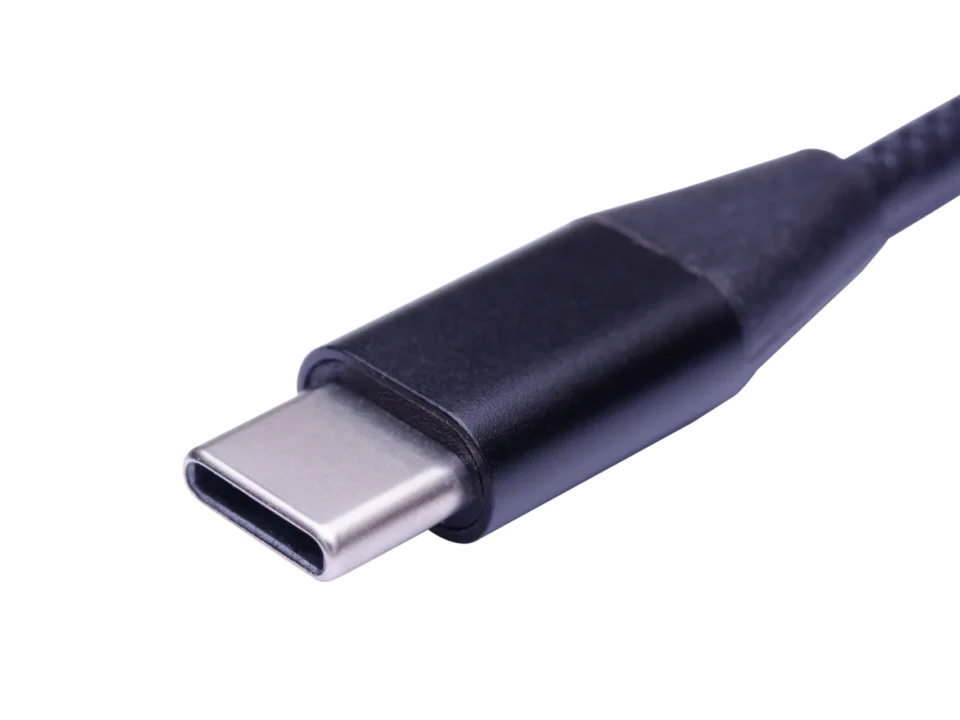
Type-C is the full-featured, orientation-free connector: 8.4 mm by 2.6 mm, 24 pins, and the only mainstream USB shape that plugs in either way up.

It was designed to replace both Type-A and Type-B in a smaller package, and it carries more than any earlier connector:
- Reversibile by construction, not by a detection trick — the two rows of pins mirror each other.
- Roughly 60% smaller in footprint than Type-A, which is what made it viable on thin phones and tablets.
- Energia up to 100W under PD 3.0 and 240W under PD 3.1 EPR, with current up to 5A.
- Dati from 480 Mbps (USB 2.0 cables) through 10 Gbps and 20 Gbps to 40 Gbps on USB4.
- Alternate modes for DisplayPort and HDMI, so one port can carry video, data and power at once.
One warning that matters for buyers: "USB-C" describes the plug, not the capability. A 24-pin connector can be wired for USB 2.0 only, with no SuperSpeed pairs and no E-Marker. That is why two identical-looking cables differ by a factor of eighty in data rate.
2.4 Mini USB connectors
Mini plugs use a 5-pin interface in a T-shaped body, small enough for the devices of the early 2000s and shaped to resist mis-mating. Mini-A and Mini-B exist, with 4-pin and 5-pin variants, and they cover USB 1.1 and 2.0 speeds only.

The format is effectively obsolete for new designs, but it survives in older external drives, digital cameras, POS terminals, older MP3 players and games consoles — enough volume that replacement cables are still worth stocking.
2.5 Micro USB connectors
Micro is the successor to Mini and the miniature face of USB 2.0: smaller, rated for thousands of mating cycles, and compatible with USB 1.1 through 2.0. It is single-orientation, which is the complaint that eventually pushed the market to Type-C.
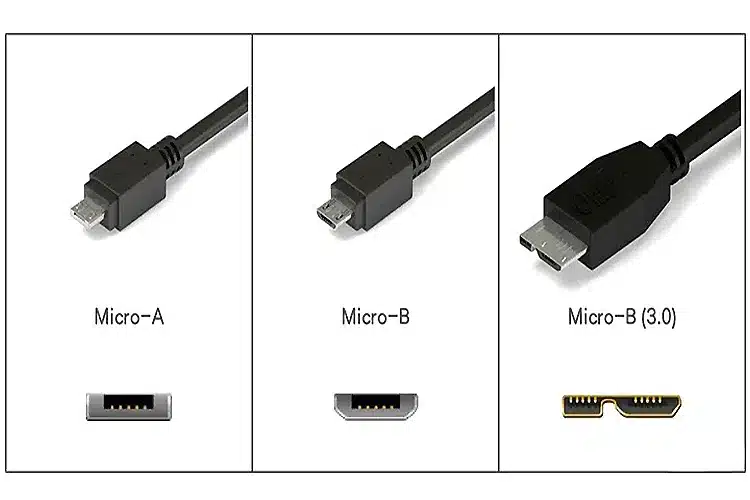
Micro-A and Micro-B are the common variants at 480 Mbps. The Micro-B SuperSpeed version adds a second contact block for USB 3.0 and reaches 5 Gbps, which is why external SSDs of that era used a wider-looking Micro plug.
Micro remains widespread in low-cost electronics, accessories and industrial hardware, even where new phones have moved on.
3. Connector types and what they support
| Connettore | USB versions | Maximum speed | Energia | Common use |
|---|---|---|---|---|
| Type-A | 2.0, 3.0, 3.2 Gen 2 | 480 Mbps, 5 Gbps, 10 Gbps | 2.5W (USB 2.0), 4.5W (USB 3.x) | Flash drives, keyboards, mice, printers |
| Type-B | 2.0, 3.0 | 480 Mbps, 5 Gbps | 2.5W, 4.5W (SuperSpeed) | Printers, scanners, drive enclosures |
| Type-C | 2.0, 3.x, USB4 | 480 Mbps to 40 Gbps | 100W (PD 3.0), 240W (PD 3.1 EPR) | Phones, tablets, laptops, docks, monitors |
| Mini-A / Mini-B | 1.1, 2.0 | 480 Mbps | 2.5W | Cameras, older MP3 players, POS terminals |
| Micro-B | 2.0 | 480 Mbps | 2.5W | Phones, cameras, accessories |
| Micro-B SuperSpeed | 3.0 | 5 Gbps | 4.5W | External SSDs, industrial cameras |
4. Male and female connectors
USB connections always pair a plug with a receptacle.

- Male plug — at the end of a cable or a dongle, inserted into the host or device port.
- Female receptacle — on the device, the hub, the wall charger or an extension cable, receiving the plug.
The names describe the contact geometry, not the direction of data or power: the male plug sits on the cable that carries the current, and the female port can be the one supplying it.
5. Is Lightning a USB connector?
No. Lightning is Apple's proprietary connector, introduced with the iPhone 5 in 2012, and it is not part of the USB family even though it carries USB signals.
Its practical limits are worth stating precisely:
- Dati at USB 2.0 speed, 480 Mbps, on nearly every Lightning device; a small number of iPad Pro models support USB 3.0 at 5 Gbps through a specific adapter.
- Energia at up to 2.4A in the classic 12W era, later extended to USB PD charging on iPad Pro.
- Reversibile, like Type-C, but with a completely different pin arrangement.
Apple adopted USB-C on the 12-inch MacBook in 2015, and the iPad line followed. The EU's unified-charging rules, agreed in 2022, set the deadline that pushed the iPhone to USB-C with the iPhone 15 in 2023. Lightning is now a legacy connector kept alive by the installed base of older iPhones and accessories.
6. Cleaning USB connectors
Dust and pocket lint are the usual cause of a port that "works only at an angle". The clean-up is simple, and the rules are strict.
- Power off and unplug the device before touching the connector.
- Blow out loose debris with compressed air, held at a slight angle.
- Dampen a cotton swab or microfibre cloth with isopropyl alcohol — damp, never dripping.
- Wipe the contacts gently. Use a swab for Type-A and Type-C; a cloth suits the smaller Micro and Lightning contacts better.
- Let it dry fully before reconnecting, which takes only a few minutes with alcohol.
- Reconnect and test.
Four rules that prevent damage: never use water, use the minimum amount of alcohol, never lever the pins with the swab, and clean on a schedule if the port lives in a pocket or a workshop.
7. Choosing the right connector
The connector choice follows the device, not the other way round. Type-C covers phones, tablets, laptops, docks and monitors in one shape, and its alternate modes make it the only connector that can carry power, data and video at once. Type-A and Type-B remain the practical choice for fixed peripherals. Mini and Micro stay in production for legacy hardware that will not be redesigned.
The specification question that decides the purchase is not the shape but the wiring behind it: how many SuperSpeed pairs, whether an E-Marker is present, which protocol versions are validated, and what power the cable is actually rated for.