

USB-C Cable: Common Issues and How to Fix Them
USB-C Cable: Common Issues and How to Fix Them
The USB-C connector was meant to end cable confusion, and in one respect it did: the plug fits either way up, on any device. What it did not do is make every cable equivalent. The same port can carry 480 Mbps or 40 Gbps, 15W or 240W, depending on what the cable and the two devices agree to.
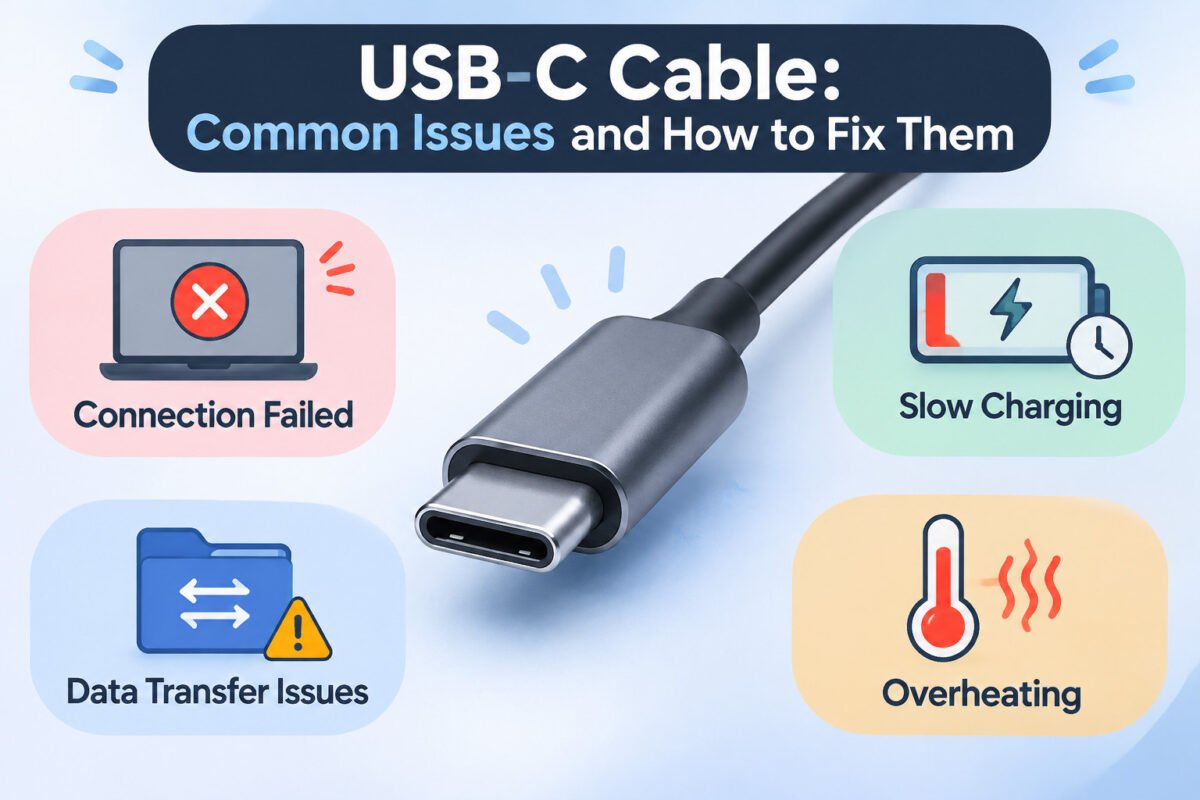
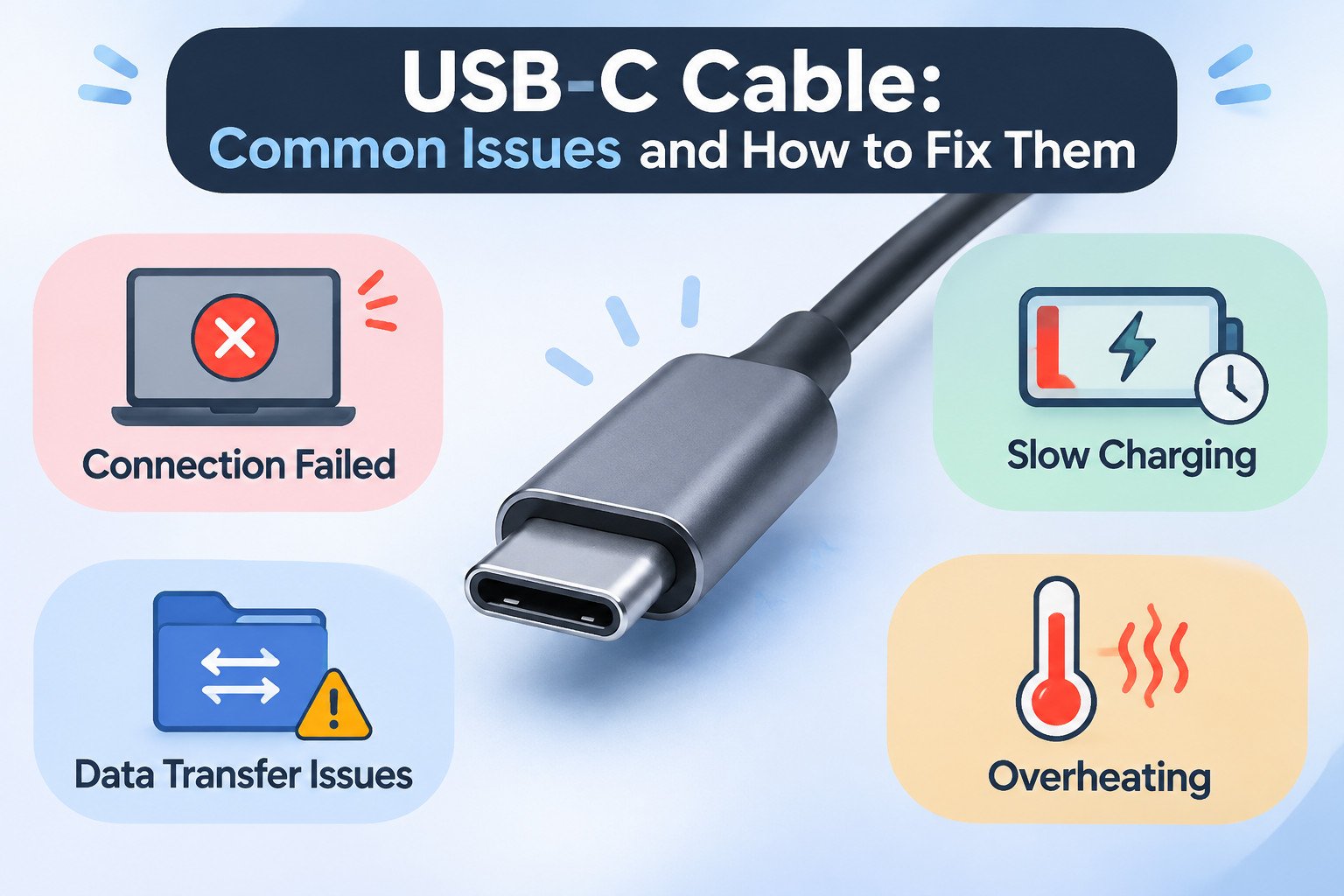
That is why USB-C faults so often look like device faults. Before replacing anything, isolate the variable: change one part at a time — cable, then port, then charger, then device — and note which change fixes the symptom. Four problem classes cover almost every case.
1. Connection Failures
Symptom: the device is not recognised, the connection drops when the cable moves, or the port works only at an angle.
Causes, roughly in order of frequency:
- Debris in the port. A USB-C receptacle is a shallow oval with a tongue in the middle, and pocket lint packs into the back of it. This is the single most common cause of a port that "suddenly died."
- Worn connector. USB-C is rated for about 10,000 insertions. Past that, the contact springs lose tension and the link becomes intermittent.
- A damaged CC pin. The configuration channel decides role and orientation. Bend that pin and the device may still receive 5V while never enumerating.
- A data-only or charge-only port. Some laptops and monitors wire only some of their USB-C ports for data or power. Check the manual before assuming a fault.
- Driver or OS state. Less common on modern systems, but a stale driver or a suspended hub can produce the same "not recognised" message.
Fixes: power off, inspect the port with a light and a wooden toothpick — never metal — and clear any compacted lint. Try the cable in a different port and a different device. If one cable fails everywhere and another works, the cable is the fault; if all cables fail in one port, the port is.
2. Slow Charging or No Charging
Symptom: the phone shows "charging" but the percentage barely moves, or nothing happens at all.
This is where USB-C produces the most false blame, because three separate limits can each cap the result.
| Symptom | Likely cause | What to check |
|---|---|---|
| Charges slowly, warms up | Cable rated below the current | Look for 3A or 5A marking and an E-Marker on 5A cables |
| Charges at 5V only | A-to-C cable, or charger without the right PDO | PD needs a C-to-C link and a 9V/15V/20V profile |
| No charging at all | Port not wired for power, or handshake failed | Try another port and another charger |
| Stops around 80% | Battery temperature or a charge limit | Cool the phone, check optimized charging settings |
The cable. Above 3A an E-Marker is mandatory; without one the link is capped at 3A, which is 60W at 20V. A 45W phone that negotiates PPS at 4.5A will fall back to its 25W tier on a 3A cable, with no error message.
The charger. A 20W iPhone adapter publishes 5V and 9V only. Plug it into a laptop that wants 20V and the laptop may show "plugged in" while taking nothing.
The device. Above roughly 35°C battery temperature, phones deliberately reduce charging current, and some stop entirely near 40°C. A phone on a car dashboard in summer is not a cable problem.
A-to-C is its own case. The A end has no CC conductor for PD, only a resistor telling the device it is a default 5V source. That is a 15W ceiling, or Quick Charge if both ends support it.
Fixes: start with the cheapest substitution — another cable of known rating, then another charger. If a USB meter shows a PD contract lower than expected, the charger does not publish that PDO; if the link stays at 5V on a C-to-C connection, suspect the cable's CC wiring or the port.
3. Data Transfer Problems
Symptom: files copy at 30 MB/s, the drive is not detected, or a transfer fails partway through.
- The cable has no data pairs. Charge-only cables are common and legitimate — they simply cannot move files. If a drive works with one cable and not another, this is the answer.
- The link is USB 2.0. 480 Mbps works out to roughly 35–40 MB/s in practice. A 10GB folder then takes about five minutes, against about ten seconds on a 10 Gbps link. Port, cable and device must all support the faster generation; the slowest one sets the rate.
- Length and interference. Passive 10 Gbps cables are typically rated to about 1 meter, 40 Gbps to about 0.8 m. Beyond that, signal integrity fails and the link either drops to a lower rate or disconnects under load.
- File system mismatch. A drive formatted NTFS mounts read-only on macOS. exFAT is the safer choice for drives that move between Windows and Mac.
- The device is not a mass-storage device. Phones present as MTP or PTP, and some cables or hubs that handle drives fine will not handle a phone.
Fixes: test the same cable with a different drive, then the same drive with a different cable. If both pass, look at the port generation and the file system rather than the hardware.
4. Overheating
Symptom: the connector or the cable body is noticeably hot during a fast charge.
Some warmth is normal. A 65W charger converts 4–7W into heat at full load, and the cable adds its own losses at 3–5A. What matters is where the heat is and how hot it gets.
- Hot at the connector, cool along the cable. Contact resistance at a worn or dirty plug. Unplug, clean, and if it recurs, retire the cable.
- Hot along the whole cable. Undersized conductors for the current. Common with unbranded 5A cables and with long, thin assemblies.
- Hot only with one charger. The charger is running near its limit, not the cable.
- Too hot to hold for more than a few seconds. Above roughly 60°C at the surface, stop using it. Check for a damaged jacket, a bent connector, or a cable that has been crushed.
Fixes: stop the charge, unplug both ends and let everything cool. Replace any cable with a deformed connector, a discolored jacket, or a smell of hot plastic. Do not leave a warm cable coiled tightly in a bag while it is still working — it traps the heat it is trying to shed.
5. Summary
Three of the four problems trace back to the same question: what is this cable actually rated for? A USB-C plug says nothing about current, data rate or PD support, so a cable that works for a phone may fail at a laptop and a cable that charges at 100W may transfer at 480 Mbps.
The practical routine is short. Isolate the variable by swapping one part at a time. Read the rating instead of the shape. And treat heat at the connector as a warning rather than a quirk.