

Thunderbolt vs USB-C: What’s the Difference?
Thunderbolt vs USB-C: What's the Difference?
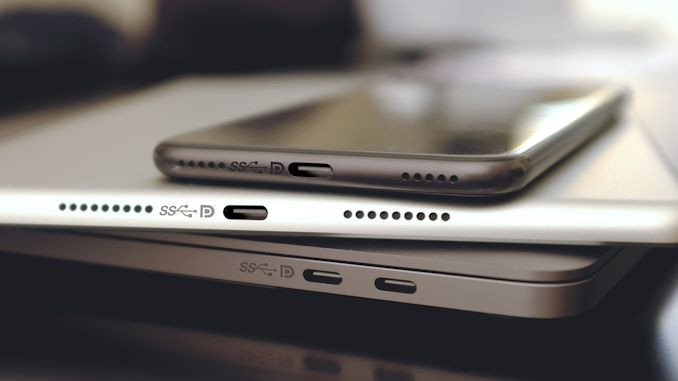
The oval plug on a laptop, a dock and a monitor is the same in all three cases. What runs through it is not. USB-C is the shape; Thunderbolt is one of several things that shape can carry, and the two are constantly mistaken for each other.
The distinction matters at the point of purchase. A USB-C cable rated for 480 Mbps will bring a Thunderbolt dock up in USB mode, not at Thunderbolt speed, and a Thunderbolt cable bought for a plain USB-C phone port delivers no benefit at all.
1. Is Thunderbolt the same as USB-C?
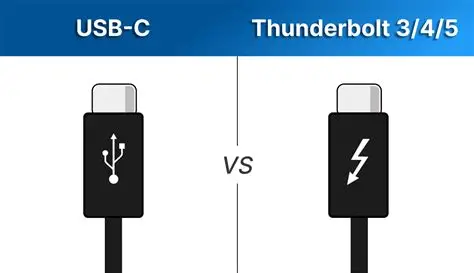
No — and the reason the question keeps appearing is that they overlap in exactly one place: the connector. Everything else is separate.
The connector. USB-C is a 24-pin, reversible plug published in 2014. It replaced Type-A on hosts and Type-B, Mini and Micro on devices. Any USB-C port uses this connector, whether the electronics behind it cost fifty cents or fifty dollars.
The protocol. This is where products diverge. The same socket can be wired for USB 2.0 only, for USB 3.2 Gen 1 or Gen 2, for USB4, for Thunderbolt 3, 4 or 5, or for DisplayPort Alt Mode. USB4 and Thunderbolt 3, 4 and 5 are built on the same underlying architecture — Intel contributed the Thunderbolt 3 specification to create USB4 — but they are certified and tested against different documents.
The certification. A Thunderbolt port carries the lightning-bolt logo and meets Intel's requirements for that generation. A USB-C port without the logo is not a Thunderbolt port, however fast it is.
One piece of history settles the naming: Thunderbolt 1 and 2 used the Mini DisplayPort connector. Only Thunderbolt 3, 4 and 5 adopted USB-C. So "Thunderbolt uses USB-C" is true from 2015 onward and false before it.
2. Thunderbolt vs USB-C at a glance
| Feature | Plain USB-C | Thunderbolt 3 / 4 / 5 |
|---|---|---|
| Connector | USB-C | USB-C |
| Data rate | USB 2.0 480 Mbps, USB 3.2 Gen 1 5 Gbps, Gen 2 10 Gbps, Gen 2x2 20 Gbps, USB4 20 or 40 Gbps | TB3 40 Gbps, TB4 40 Gbps, TB5 80 Gbps (120 Gbps Bandwidth Boost) |
| Video | DP Alt Mode: 2 lanes drive 1x 4K or 2x 2K; 4 lanes drive 1x 8K or 2x 4K (8K needs DSC) | TB3 2x 4K or 1x 5K; TB4 2x 4K or 1x 8K; TB5 2x 8K |
| Power | Up to 240W with PD 3.1 EPR | TB3 and TB4 up to 100W, TB5 up to 240W |
| PCIe | Only on USB4 ports; USB 3.2 and USB 2.0 ports carry no PCIe | TB3 Gen3 x2 (16 Gbps); TB4 Gen3 x4 (32 Gbps); TB5 Gen4 x4 (64 Gbps) |
| Cable length at full speed | About 1 m for 10 Gbps, 0.8 m for 40 Gbps | Typically 0.8 m passive at 40 Gbps, longer with active cables |
Two things behind that table surprise most buyers.
USB speed is capped by the tunnel, not by the link. A Thunderbolt port does not hand its full link rate to a USB drive. It carries a USB generation inside the link, and that generation sets the ceiling:
| Device plugged in | Plain USB-C port | Thunderbolt 3 | Thunderbolt 4 | Thunderbolt 5 |
|---|---|---|---|---|
| USB 2.0 device | 480 Mbps | 480 Mbps | 480 Mbps | 480 Mbps |
| USB 3.2 device | 5 or 10 Gbps, per the port | 10 Gbps | 10 Gbps | 10 Gbps |
| USB4 device | 20 or 40 Gbps, on a USB4 port | 10 Gbps, falls back to USB 3.2 | 40 Gbps | 80 Gbps |
The gap is practical, not theoretical. A 40 Gbps SSD enclosure runs at 40 Gbps on a Thunderbolt 4 port only if the enclosure itself is a USB4 device. Move the same enclosure to a Thunderbolt 3 port and it falls back to USB 3.2 at 10 Gbps — the same speed as an ordinary USB 3.2 drive. Apart from USB4 devices, that bandwidth goes to PCIe devices and displays.
Power is not 240W by default. The common assumption is that Thunderbolt automatically means 240W. It does not: Thunderbolt 3 and 4 ports are specified up to 100W, which is enough for a 13-inch ultrabook and not enough for a workstation laptop. Only Thunderbolt 5 raises the ceiling to 240W with PD 3.1 EPR.
3. Thunderbolt 3 vs 4 vs 5
The generations differ less in peak bandwidth than in minimum requirements. Thunderbolt 3 promised 40 Gbps; Thunderbolt 4 guarantees what a TB3 port only allowed.
| Thunderbolt 3 | Thunderbolt 4 | Thunderbolt 5 | |
|---|---|---|---|
| Introduced | 2015 | 2020 | 2024 |
| Peak data rate | 40 Gbps | 40 Gbps | 80 Gbps, 120 Gbps in Bandwidth Boost |
| PCIe | Gen3 x2 (16 Gbps) | Gen3 x4 (32 Gbps) | Gen4 x4 (64 Gbps) |
| Display support | 2x 4K or 1x 5K | 2x 4K or 1x 8K | 2x 8K |
| Charging | Up to 100W | Up to 100W, at least one port | Up to 240W |
| Ports per host | No minimum | Up to 4 | Not specified |
The practical reading: TB4's advantage is consistency. A TB4-certified machine must drive two 4K screens, must offer 32 Gbps of PCIe, must charge at 100W on at least one port and must support wake-from-sleep and DMA protection. A TB3 machine could offer 40 Gbps and still fail every one of those. TB5 adds real bandwidth, but only a TB5-rated cable carries it.
4. Cables: what works with what
Compatibility runs in one direction more reliably than the other.
- USB-C cable into a Thunderbolt port. Works. A TB3, TB4 or TB5 host accepts any USB-C cable and runs at that cable's grade. A USB 2.0 cable gives you 480 Mbps and no video.
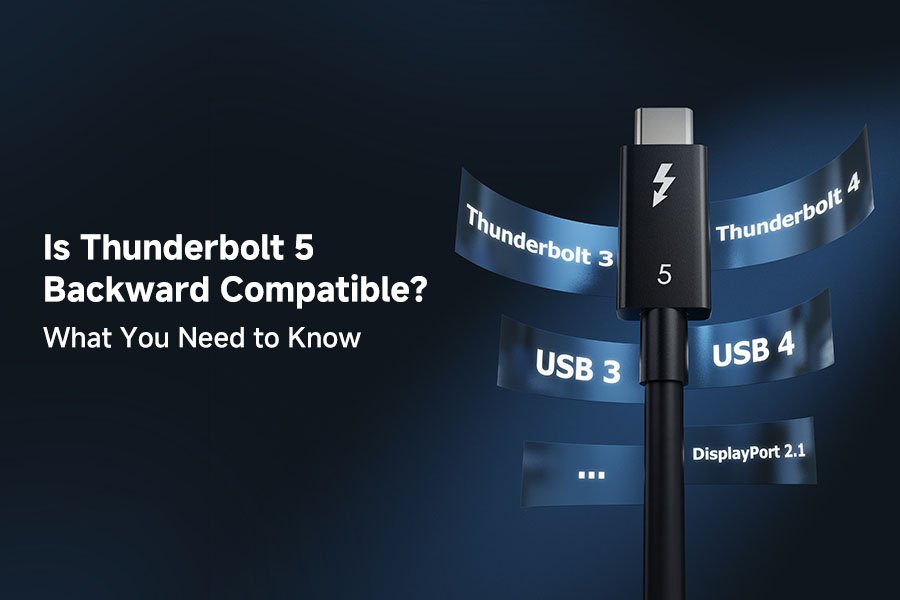
- Thunderbolt cable into a USB-C port. Usually works. Passive TB3, TB4 and TB5 cables carry USB4, USB 3.2 and USB 2.0 as well. The exception is optical Thunderbolt 3 cables, which carry Thunderbolt only.
- USB-C cable into a Thunderbolt dock. Often downgrades. Many docks fall back to USB mode rather than refuse the connection, so the screen lights up and the SSD runs at a fraction of its speed. Full function needs a cable rated for the dock's generation.
- Thunderbolt 5 at 80 Gbps. Needs a Thunderbolt 5 or USB4 v2 cable. A 40 Gbps USB4 cable will negotiate down, and no passive copper cable carries 80 Gbps over a long run.
- 240W charging. Needs a 5A, E-Marked cable in every generation. The Thunderbolt badge alone does not guarantee it.
Length is the constraint buyers underestimate. A passive 40 Gbps cable is typically limited to about 0.8 m; longer runs need active electronics, which cost several times more and are directional.
5. FAQ
Is a USB-C cable compatible with Thunderbolt ports?
Yes. Thunderbolt 3, 4 and 5 hosts accept any USB-C cable and run at the speed that cable and device support. The reverse case is where surprises appear: some Thunderbolt peripherals only accept Thunderbolt data, so a plain USB-C cable brings the port up but not the device's full function.
Can I use a USB-C cable with a Thunderbolt dock?
You can plug it in, and it will usually connect. What you get is USB mode, which is fine for a keyboard or a hard drive and wrong for a 4K display chain. Use a Thunderbolt-rated cable from the host's Thunderbolt port.
Can I use a Thunderbolt cable with USB-C devices?
Almost always. Passive Thunderbolt 3, 4 and 5 cables are backwards compatible with USB4, USB 3.2 and USB 2.0. Optical Thunderbolt 3 cables are the exception and should be kept for Thunderbolt devices.
Can I charge a laptop through a Thunderbolt port?
Yes, over USB Power Delivery. The limit depends on the port, not the connector: TB3 and TB4 ports deliver up to 100W, TB5 up to 240W, and some TB3 implementations supply less than 100W. Check the port's rating before relying on it as the only charger.
How do I know whether a port is Thunderbolt?
Look for the lightning-bolt logo next to the socket, and confirm the exact generation in the system information panel — the logo tells you it is Thunderbolt, not which version. A USB-C port with no logo is USB only.
For OEM and ODM work, "USB-C" describes a connector and says nothing about speed, video or power. The three have to be specified separately, and the cable has to be rated for the highest of them.