

How Many Mbps Are in a Gbps? Understanding Data Transfer Speeds
How Many Mbps Are in a Gbps? Understanding Data Transfer Speeds
When comparing USB cables, external storage devices, and data-transfer technologies, you will often encounter terms such as Mbps and Gbps. These units describe how quickly data can travel between connected devices. However, understanding the difference between Mbps, Gbps, and MB/s is important when comparing cable specifications and evaluating actual transfer performance. So, how many Mbps are in a Gbps? How do these units relate to USB 2.0, USB 3.2, and USB4 data-transfer speeds? This guide explains the conversion, compares common USB data standards, and helps you choose the right USB cable for your application.
1. Mbps vs. Gbps: Understanding the Difference
Mbps stands for megabits per second, while Gbps stands for gigabits per second. Both measure data-transfer rates, but they represent different quantities.
The main difference is their scale:
- Mbps (Megabits per second): One megabit per second represents one million bits transferred per second.
- Gbps (Gigabits per second): One gigabit per second represents one billion bits transferred per second.
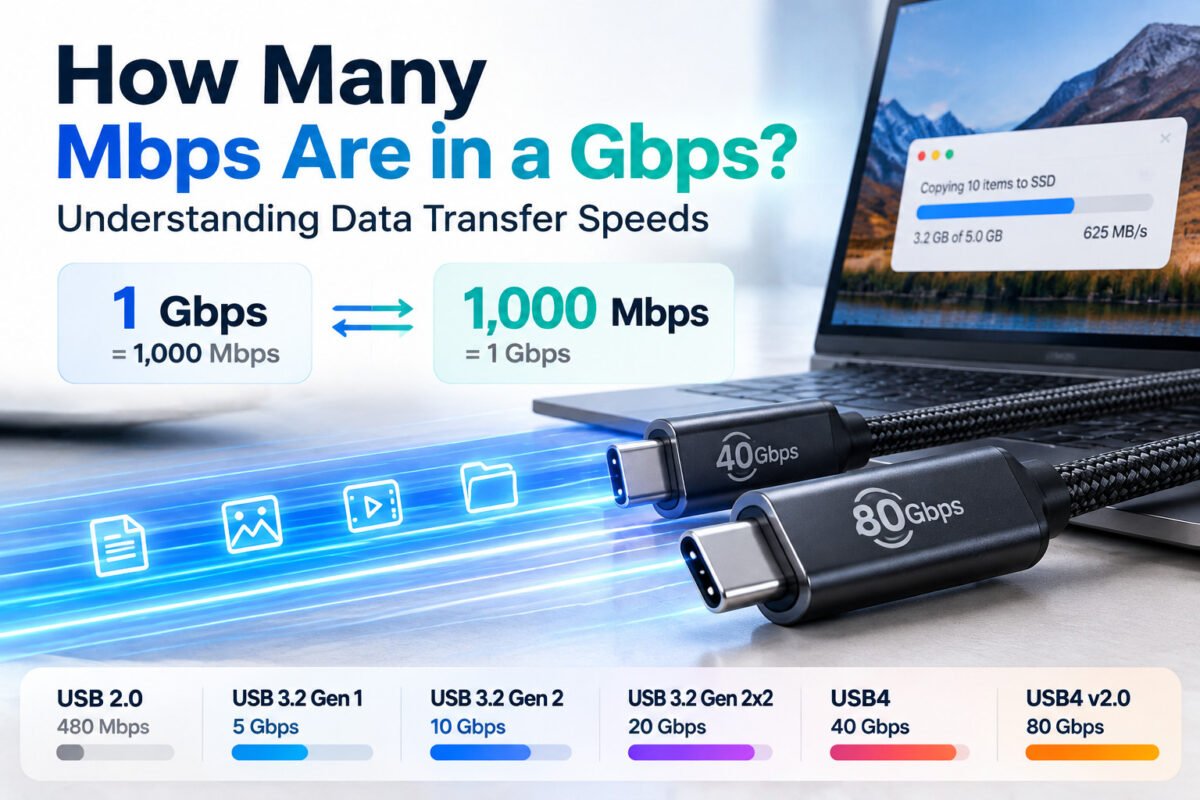
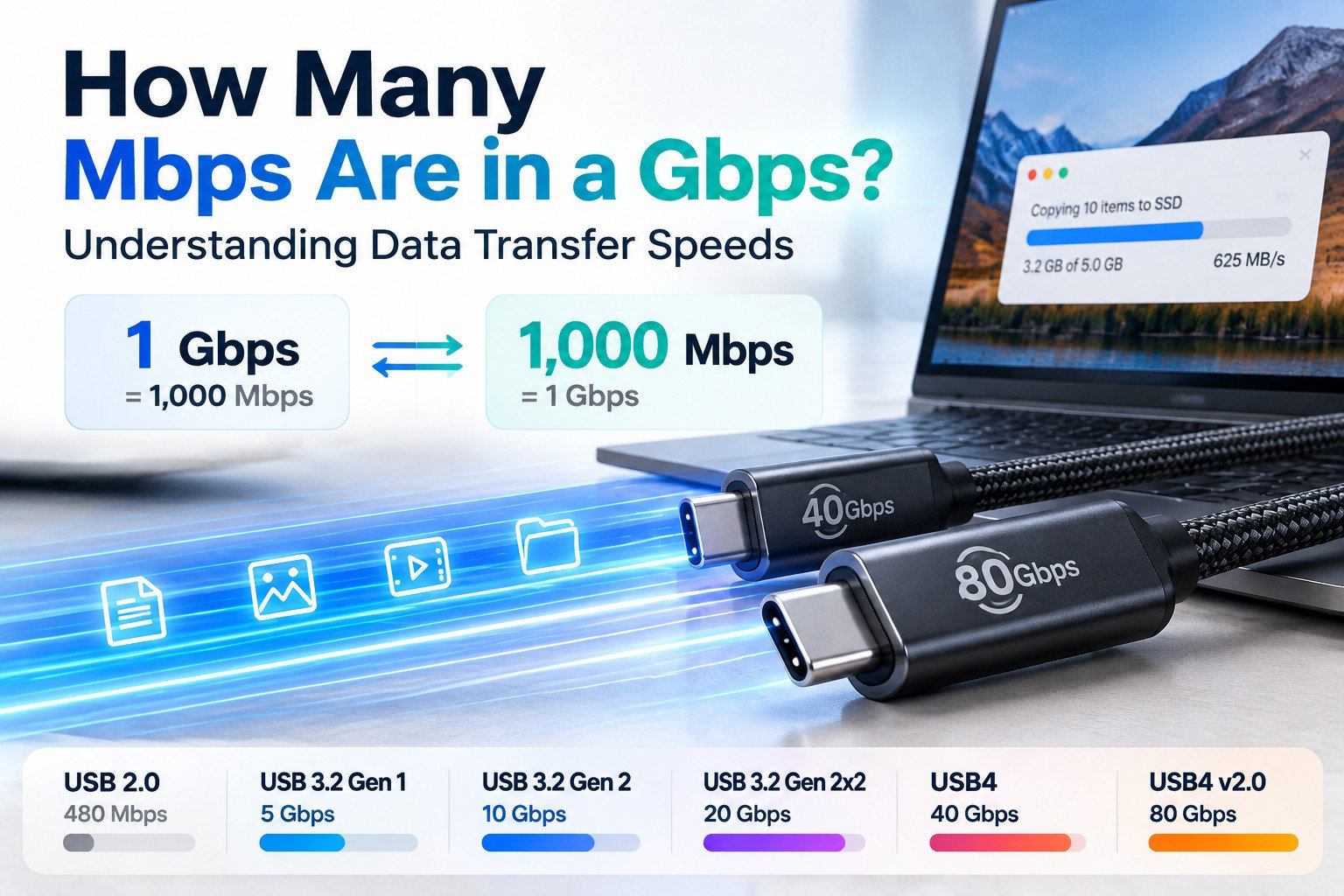
Using the standard decimal measurement system, one gigabit equals 1,000 megabits.
Therefore:
1 Gbps = 1,000 Mbps
This means that a connection rated at 5 Gbps has a theoretical signaling rate equivalent to 5,000 Mbps.
How to Convert Gbps to Mbps
The conversion is straightforward:
Mbps = Gbps × 1,000
For example:
| Gbps | Equivalent Mbps |
|---|---|
| 0.5 Gbps | 500 Mbps |
| 1 Gbps | 1,000 Mbps |
| 2 Gbps | 2,000 Mbps |
| 5 Gbps | 5,000 Mbps |
| 10 Gbps | 10,000 Mbps |
| 20 Gbps | 20,000 Mbps |
| 40 Gbps | 40,000 Mbps |
| 80 Gbps | 80,000 Mbps |
If you need to convert Mbps back to Gbps, divide the value by 1,000.
Gbps = Mbps ÷ 1,000
For example, 5,000 Mbps equals 5 Gbps.
What Is the Difference Between Mbps and MB/s?
One common source of confusion is the difference between Mbps and MB/s.
Although their abbreviations look similar, they measure different units:
- Mbps: Megabits per second.
- MB/s: Megabytes per second.
One byte contains eight bits. Therefore, eight megabits equal one megabyte.
To convert Mbps into MB/s, divide by eight.
MB/s = Mbps ÷ 8
Similarly:
MB/s = Gbps × 125
For example:
| Data Rate | Equivalent Data Rate |
|---|---|
| 480 Mbps | 60 MB/s |
| 1 Gbps | 125 MB/s |
| 5 Gbps | 625 MB/s |
| 10 Gbps | 1,250 MB/s |
| 20 Gbps | 2,500 MB/s |
| 40 Gbps | 5,000 MB/s |
| 80 Gbps | 10,000 MB/s |
These figures represent mathematical conversions of theoretical signaling rates, not guaranteed file-transfer speeds.
Actual transfer performance is lower because of encoding overhead, communication protocols, device limitations, and other system factors.
2. How Mbps and Gbps Relate to USB Cable Speeds
Understanding Mbps and Gbps becomes especially useful when comparing USB cables.
Different USB standards support different maximum data-transfer rates. A cable designed for basic charging or everyday data communication may have very different capabilities from one intended for external SSDs or high-bandwidth applications.
Here are some common USB data-transfer standards.
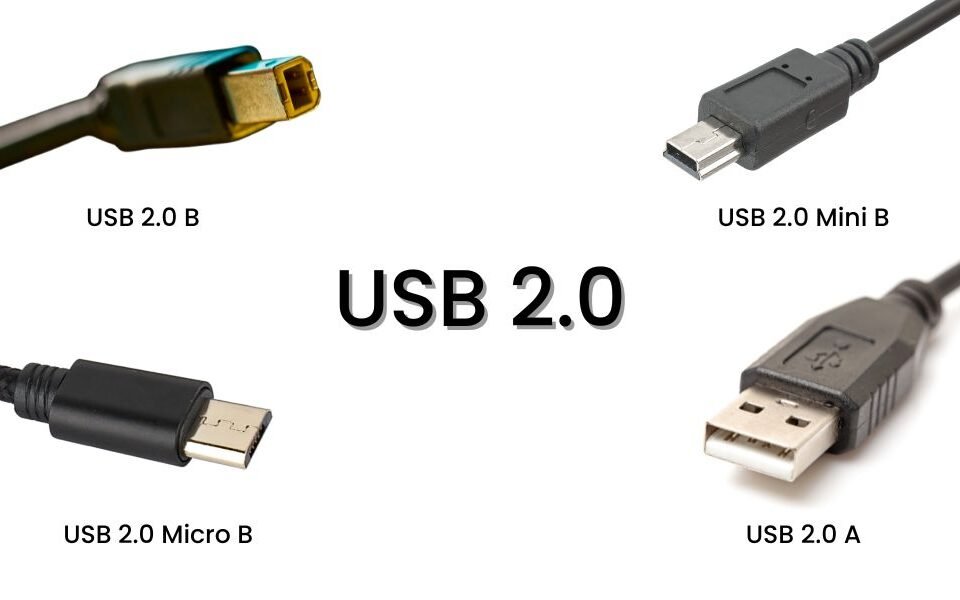
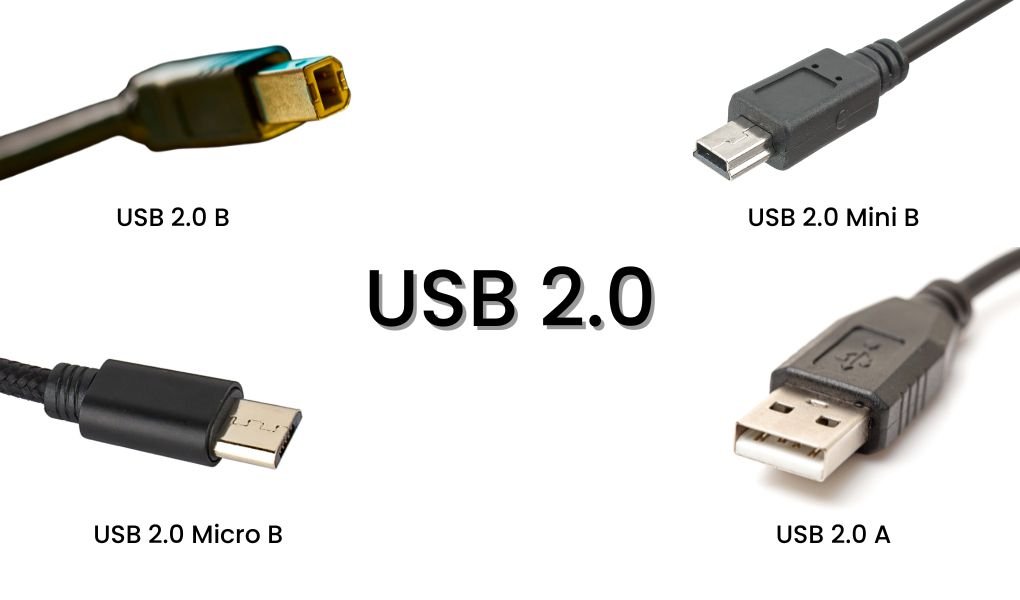
USB 2.0: 480 Mbps
USB 2.0 supports a maximum High-Speed data rate of 480 Mbps.
This is equivalent to:
- 0.48 Gbps
- 60 MB/s
USB 2.0 cables are commonly used for keyboards, mice, basic peripherals, smartphones, and other devices that do not require high data throughput.
For everyday file transfers and basic device connections, USB 2.0 may be sufficient.
USB 3.2 Gen 1: 5 Gbps
USB 3.2 Gen 1 supports a maximum signaling rate of 5 Gbps, equivalent to 5,000 Mbps.
This is more than ten times the theoretical signaling rate of USB 2.0.
It is suitable for compatible external storage devices, general file transfers, and peripherals requiring higher bandwidth.
USB 3.2 Gen 1 was previously marketed under names such as USB 3.0 and USB 3.1 Gen 1.
USB-IF also uses the simpler performance designation USB 5Gbps to make the supported speed easier to understand.
USB 3.2 Gen 2: 10 Gbps
USB 3.2 Gen 2 supports data transfer at up to 10 Gbps.
This is equivalent to 10,000 Mbps or 1,250 MB/s in a simple bits-to-bytes conversion.
It is commonly used for compatible external SSDs, docking equipment, and other devices that require higher data-transfer performance.
USB-IF's corresponding performance designation is USB 10Gbps.
USB 3.2 Gen 2x2: 20 Gbps
USB 3.2 Gen 2x2 supports a theoretical signaling rate of up to 20 Gbps.
It uses two 10 Gbps lanes to provide a combined data rate of 20 Gbps.
This mode requires compatible USB-C host, device, and cable implementations. It is not supported through standard USB-A configurations.
It is associated with higher-performance external storage and other demanding data applications.
USB-IF's corresponding performance designation is USB 20Gbps.
USB4: 20 Gbps and 40 Gbps
USB4 introduced higher-bandwidth connectivity through USB Type-C.
Depending on the USB4 implementation, supported data signaling rates include 20 Gbps and 40 Gbps.
USB4 can also support multiple data and display protocols through its architecture, allowing bandwidth to be allocated according to connected devices and their requirements.
The corresponding performance designations include USB 20Gbps and USB 40Gbps.
USB4 Version 2.0: Up to 80 Gbps
USB4 Version 2.0 extends USB data capabilities to up to 80 Gbps using supported cables and equipment.
This provides substantially more bandwidth for advanced storage, displays, docking stations, and other high-performance applications.
USB4 Version 2.0 also supports an optional asymmetric operating mode for certain applications, particularly high-performance display configurations. This mode can provide up to 120 Gbps in one direction and 40 Gbps in the other.
The 120 Gbps figure should not be interpreted as a general-purpose 120 Gbps bidirectional data-transfer rate.
Not every USB-C cable supports USB4 Version 2.0. The host, connected device, and cable must all support the intended operating mode.
USB-IF uses USB 80Gbps as the corresponding performance designation.
USB Data Transfer Speed Comparison
| USB Standard | USB Performance Designation | Maximum Signaling Rate |
|---|---|---|
| USB 2.0 | Hi-Speed USB | 480 Mbps |
| USB 3.2 Gen 1 | USB 5Gbps | 5 Gbps |
| USB 3.2 Gen 2 | USB 10Gbps | 10 Gbps |
| USB 3.2 Gen 2x2 | USB 20Gbps | 20 Gbps |
| USB4 | USB 20Gbps / USB 40Gbps | 20 / 40 Gbps |
| USB4 Version 2.0 | USB 80Gbps | Up to 80 Gbps |
The figures represent maximum theoretical signaling rates. Actual data-transfer performance depends on the complete connection and may be lower.
3. What Affects Real-World USB Data Transfer Speeds?
A USB cable's advertised speed does not necessarily match the speed you will experience when transferring files.
Even if a cable supports 10 Gbps or 40 Gbps, the actual connection may operate at a lower rate.
Several factors influence performance.
Host Device and Port Capability
The computer or host device must support the intended USB data standard.
For example, connecting a 40 Gbps USB4 cable to a computer with a USB 2.0 port will not provide 40 Gbps performance.
The connection operates according to the capabilities supported by the connected components.
Cable Specifications and Construction
Different USB cables are designed for different data rates.
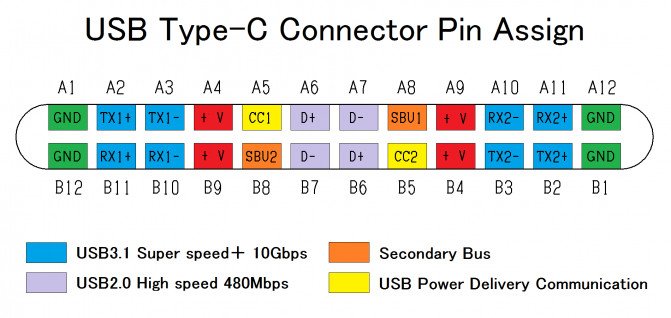
A USB-C connector does not automatically mean that a cable supports USB4 or high-speed data transfer.
Internal signal paths, shielding, electrical characteristics, and cable construction all influence whether the intended data rate can be supported.
For high-speed applications, choose a cable with clearly documented USB performance specifications.
Connected Device Performance
The connected device also affects data-transfer speed.
For example, an external hard drive may not transfer data as quickly as an SSD, even when both use the same USB connection.
The storage technology, controller, and device interface can become the limiting factors.
File Size and System Overhead
Small files may transfer more slowly than large files because of file-management operations and communication overhead.
Operating system performance, background processes, and the number of files being transferred can also affect results.
Therefore, the theoretical USB signaling rate should not be treated as a guaranteed file-copy speed.
4. How to Choose the Right USB Cable for Your Data Transfer Needs
The best USB cable depends on the devices you use and the amount of data you need to transfer.
A higher-speed cable is not always necessary. The important thing is to match the cable's specifications to the intended application.
For Basic Data Transfer
For everyday tasks such as transferring documents, connecting keyboards, and synchronizing basic peripherals, a USB 2.0 cable may be sufficient.
It provides up to 480 Mbps of theoretical data transfer and is suitable for many applications that do not require high bandwidth.
For General File Transfers
For transferring larger files, photos, videos, and other data, a USB cable supporting 5 Gbps or 10 Gbps may be more appropriate.
These options provide higher theoretical bandwidth and can be useful with compatible computers and external storage devices.
For High-Speed Storage and Professional Applications
For applications involving external SSDs, large video files, high-performance docking stations, or other bandwidth-intensive equipment, consider USB 3.2 Gen 2x2 or USB4 cables where supported.
For advanced applications requiring up to 80 Gbps, compatible USB4 Version 2.0 equipment and certified cables are necessary.
Check These Specifications Before Buying
Before selecting a USB cable, confirm:
- Connector types and configuration.
- Supported USB data standard.
- Maximum data-transfer rate.
- Cable length and construction.
- Compatibility with the host and connected device.
- Charging power requirements, if the cable also supplies power.
For USB-C cables, remember that charging capability and data-transfer performance are separate specifications.
A cable may support high-power charging but only USB 2.0 data transfer. Another cable may support high-speed data but have a different charging rating.
Choosing the correct combination helps ensure that the cable meets the actual requirements of the application.
5. Conclusion
One gigabit per second equals 1,000 megabits per second, so converting Gbps to Mbps simply requires multiplying by 1,000.
However, understanding the difference between Mbps, Gbps, and MB/s is just as important when comparing USB cable specifications. Remember that one byte contains eight bits, meaning 1 Gbps is equivalent to 125 MB/s in a mathematical conversion.
USB standards offer different data-transfer capabilities, ranging from 480 Mbps for USB 2.0 to 80 Gbps for USB4 Version 2.0.
The right cable depends on the supported USB standard, connected devices, data-transfer requirements, and intended application.
For product developers, purchasing teams, and businesses sourcing USB cables, checking the cable's documented data rate and construction is essential to selecting a suitable product.
Explore WJW's USB Cable Solutions to learn more about different USB cable configurations and data-transfer capabilities.